Choose language
Scan. Edit. Send.
Scanta turns your smartphone into a modern document scanner. From paper to PDF in seconds.
Try Scanta free for 3 days.
From paper to PDF.
No scanner, no computer. Just you and your smartphone.
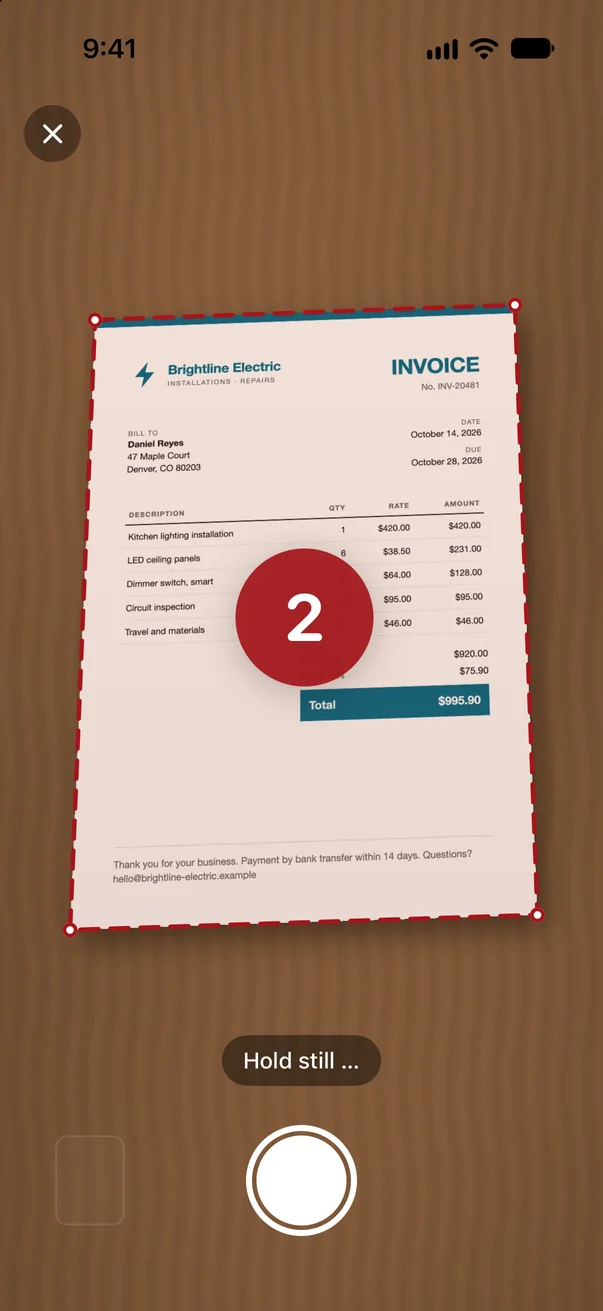
Scan documents
One page or twenty: Scanta scans automatically, you just hold the smartphone.
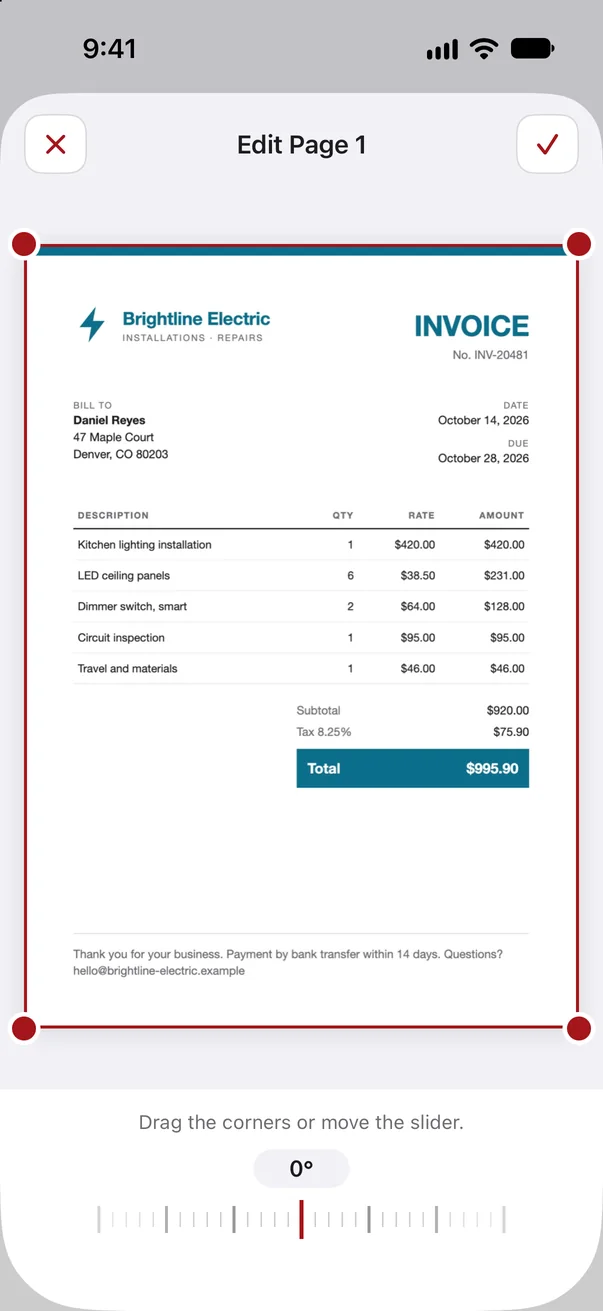
Edit your scan
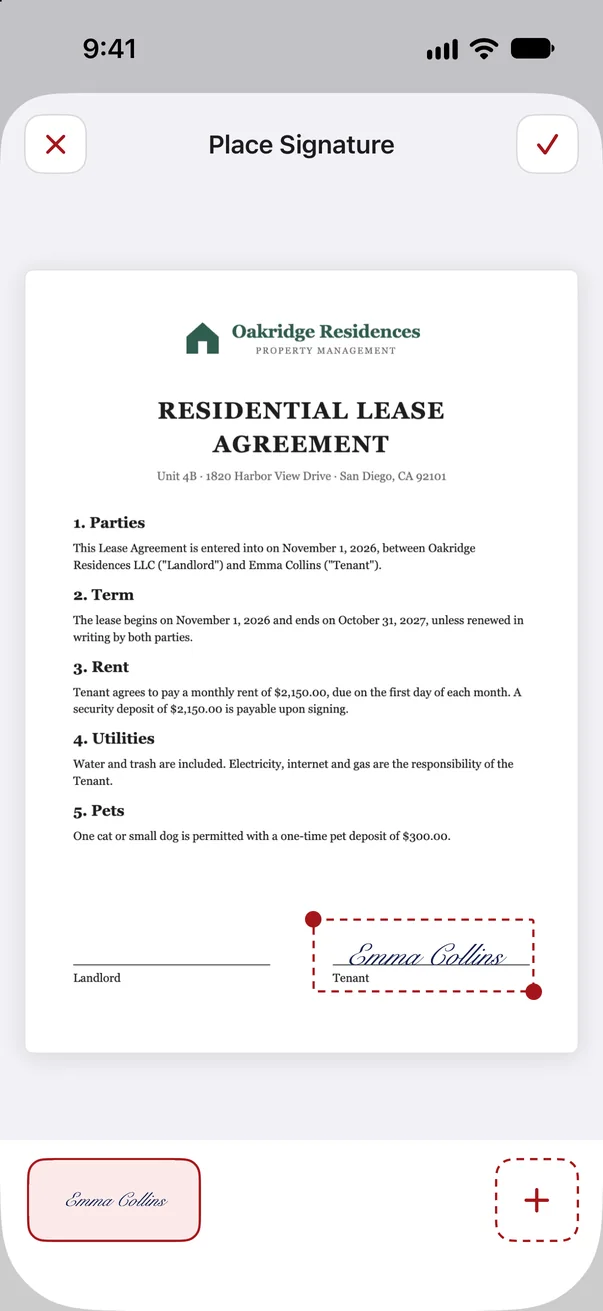
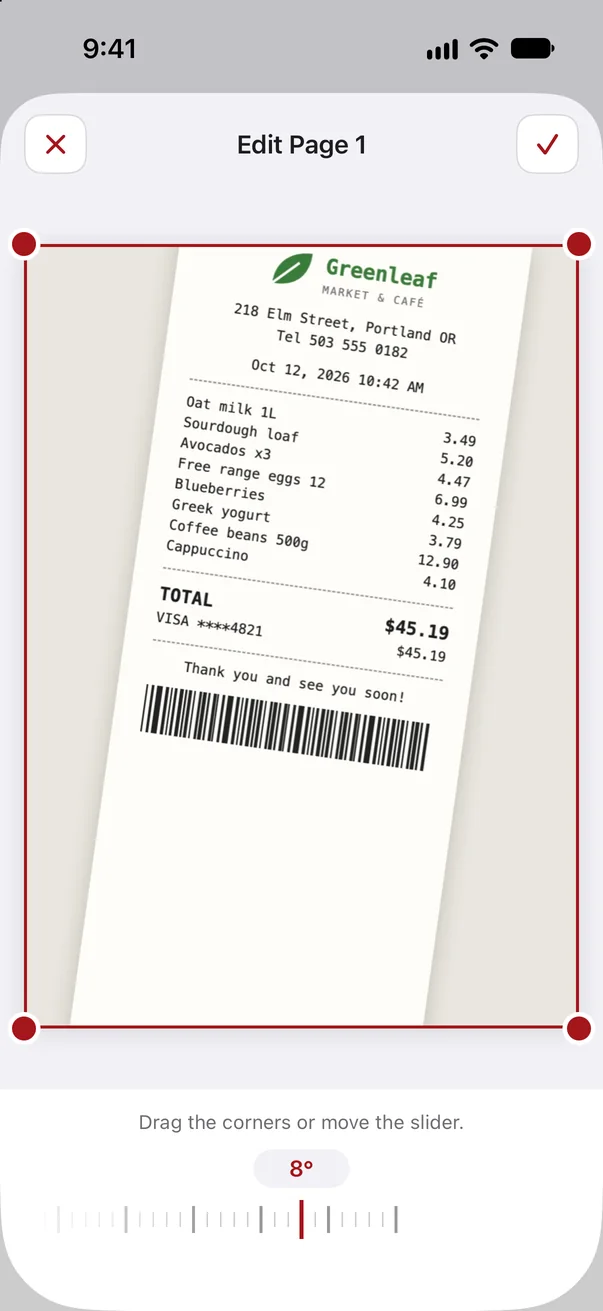
Crooked, too much border or a signature missing? A few taps and the page is right.
Share your PDF
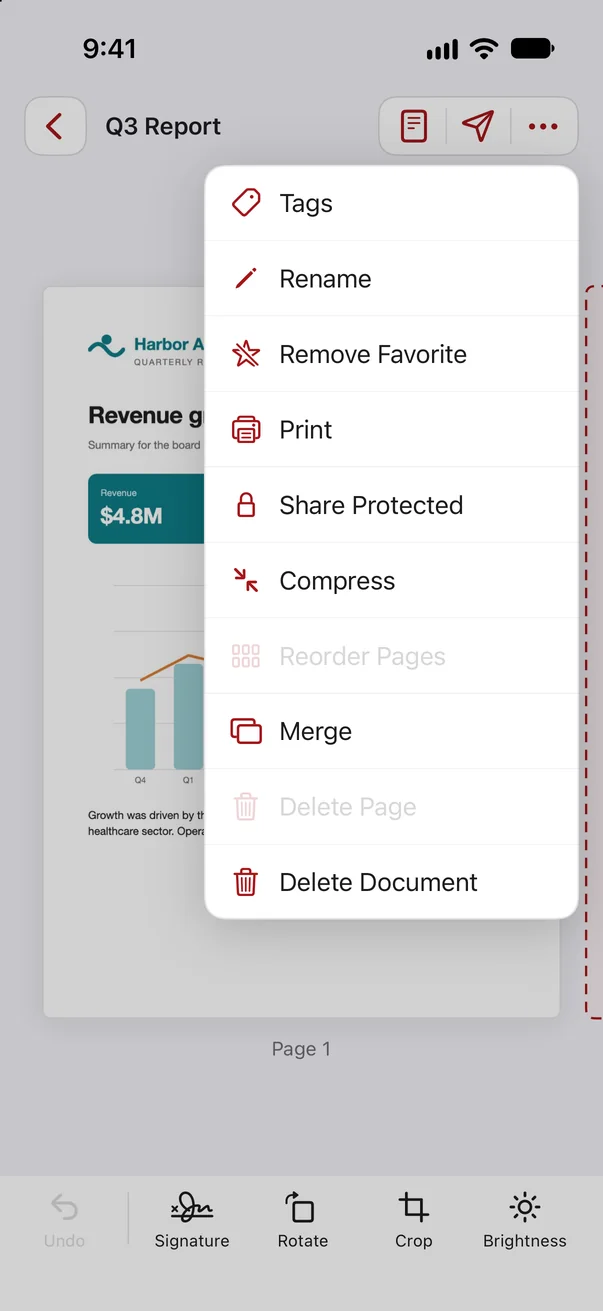
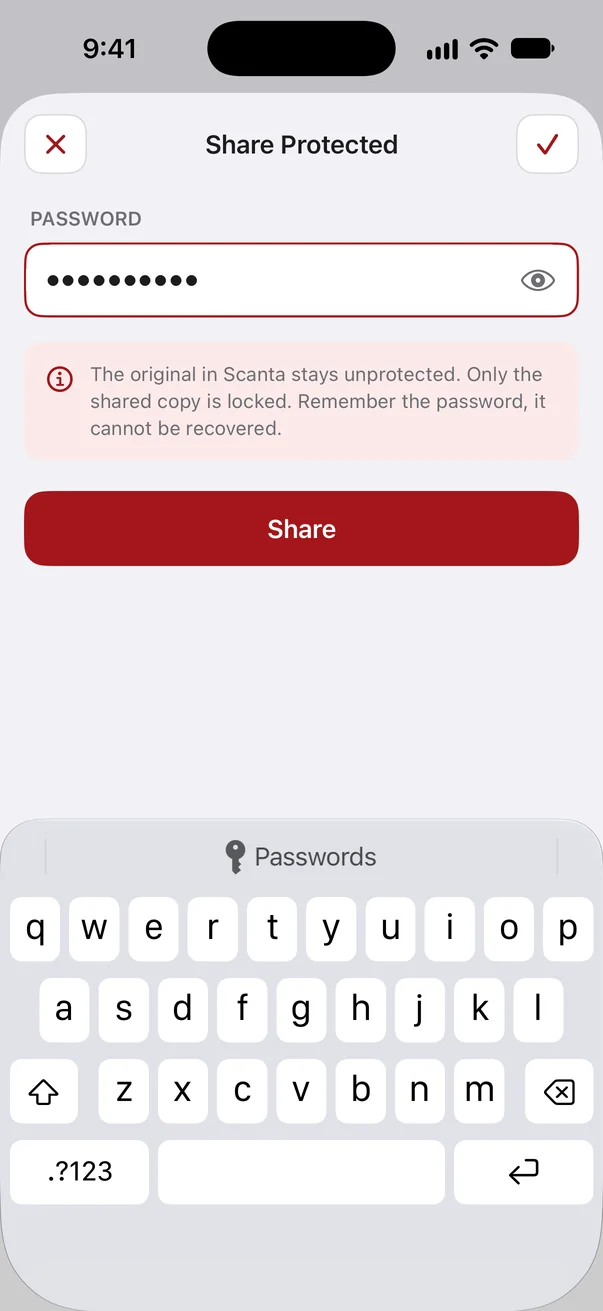
Your finished PDF goes out with one tap, protected with a password if you like.
No account, no cloud. Your documents stay on your smartphone and never reach our servers.
Take a look inside.
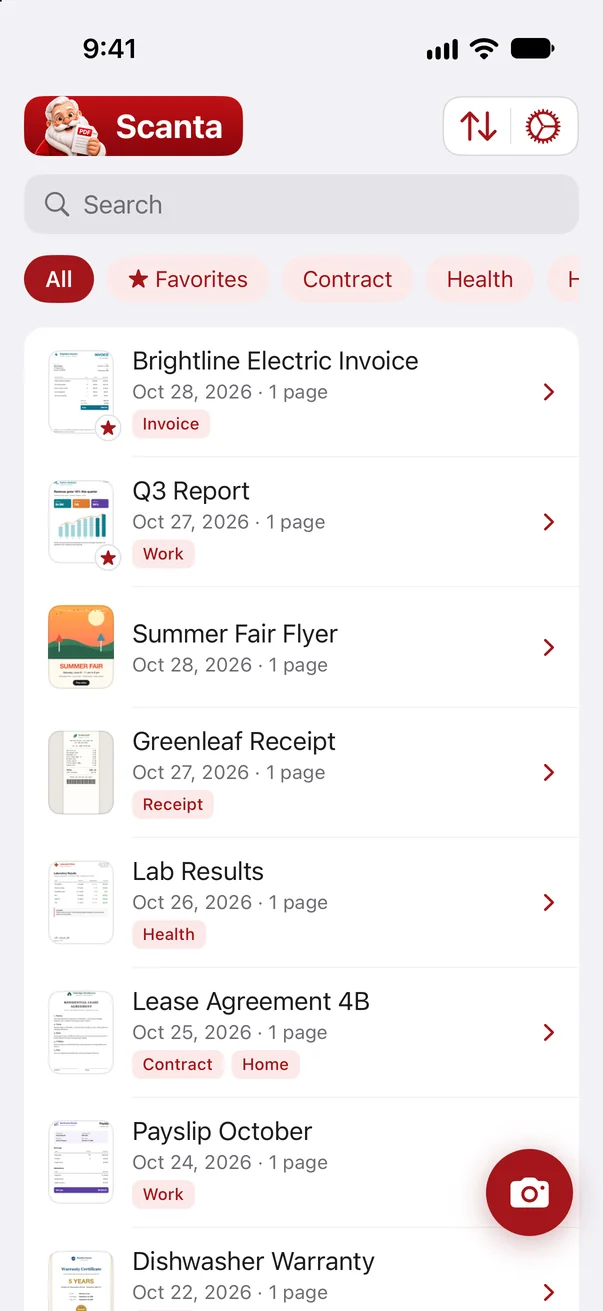
Everything a scanner should do. And a little more.
Questions & Answers.
Your question is not here? Contact us.
General
What is Scanta?
Scanta is a document scanner for your smartphone. You hold a page inside the frame, the app captures it by itself, straightens the page and turns the paper white. Every scan becomes a PDF you can edit, search and share.
Which languages is Scanta available in?
In many languages. The app follows the language of your smartphone automatically. If your language is missing, Scanta appears in English.
Which smartphones are supported?
Currently all iPhones running iOS 18 or later. On models with a 48-megapixel camera, Scanta uses the full resolution, so even small print stays sharp. An Android version is planned.
Does the app need an internet connection?
Yes, an internet connection is required to use Scanta. Documents and assets such as a created signature never leave the device, though.
Scanning and editing
How does automatic scanning work?
Hold the page inside the frame and keep the camera still. Scanta detects the document, counts down briefly and captures it by itself. The app then straightens the page and turns the paper white.
Can I scan several pages into one document?
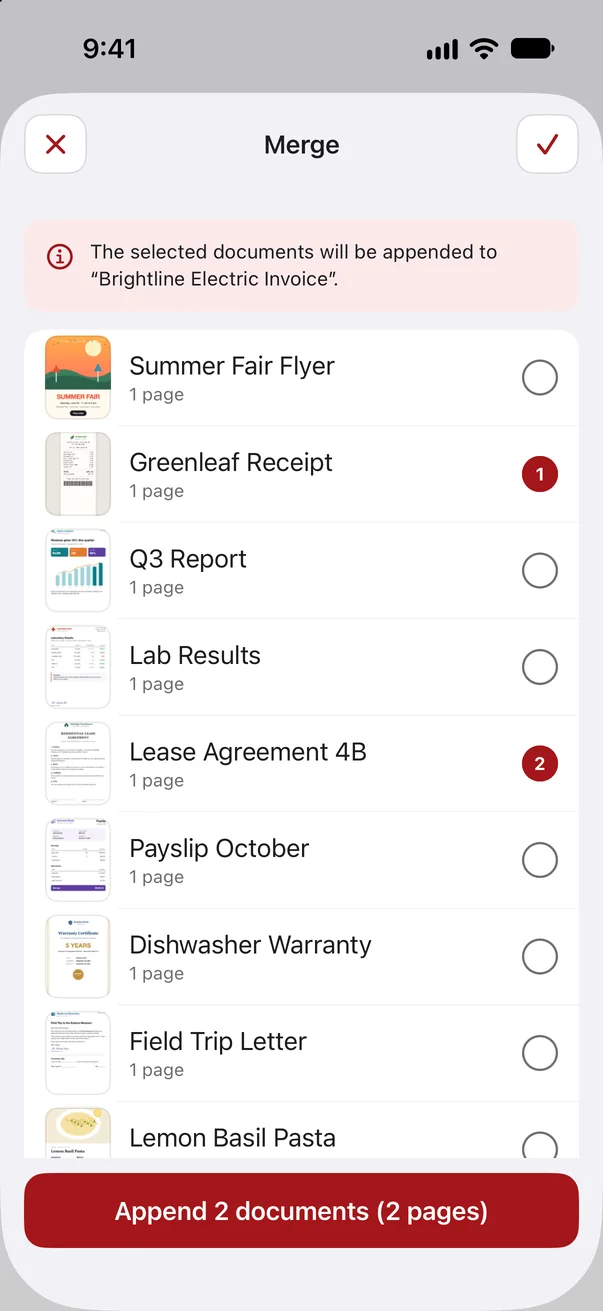
Yes. After each page you can capture the next one right away, browse the review screen and delete pages. Later you can add pages, reorder them and merge whole documents.
What can I edit after scanning?
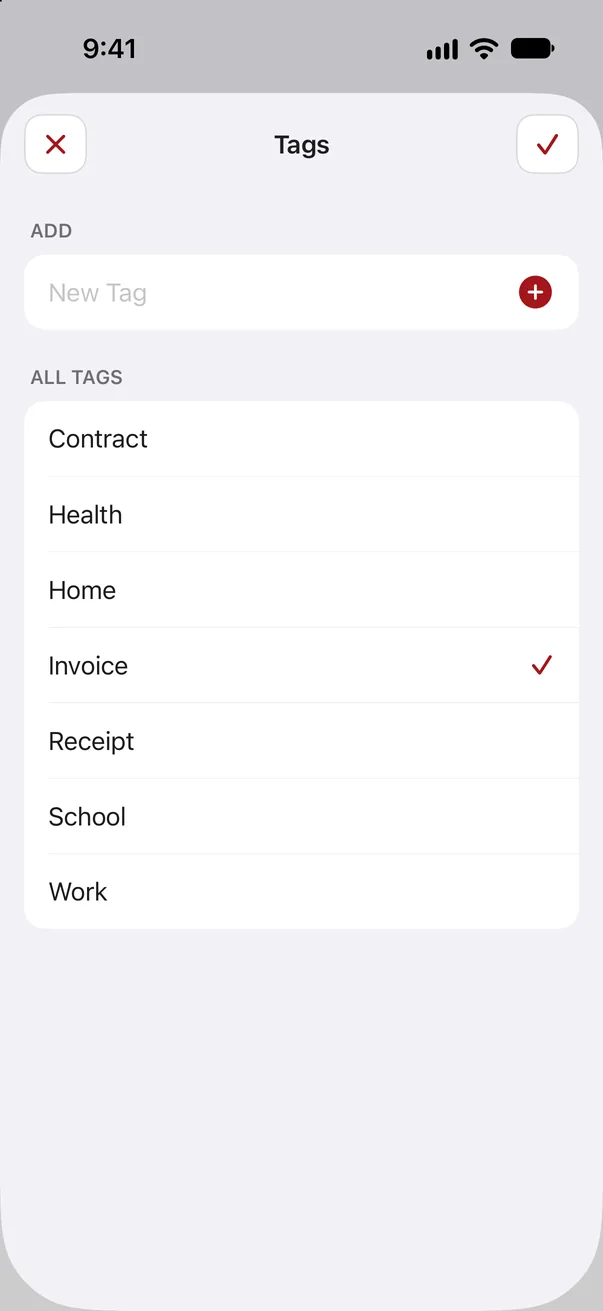
Every page can be rotated, straightened, cropped and filtered. You can add text, images and stickers and place your signature on any page. Every step can be undone.
Does text recognition (OCR) work?
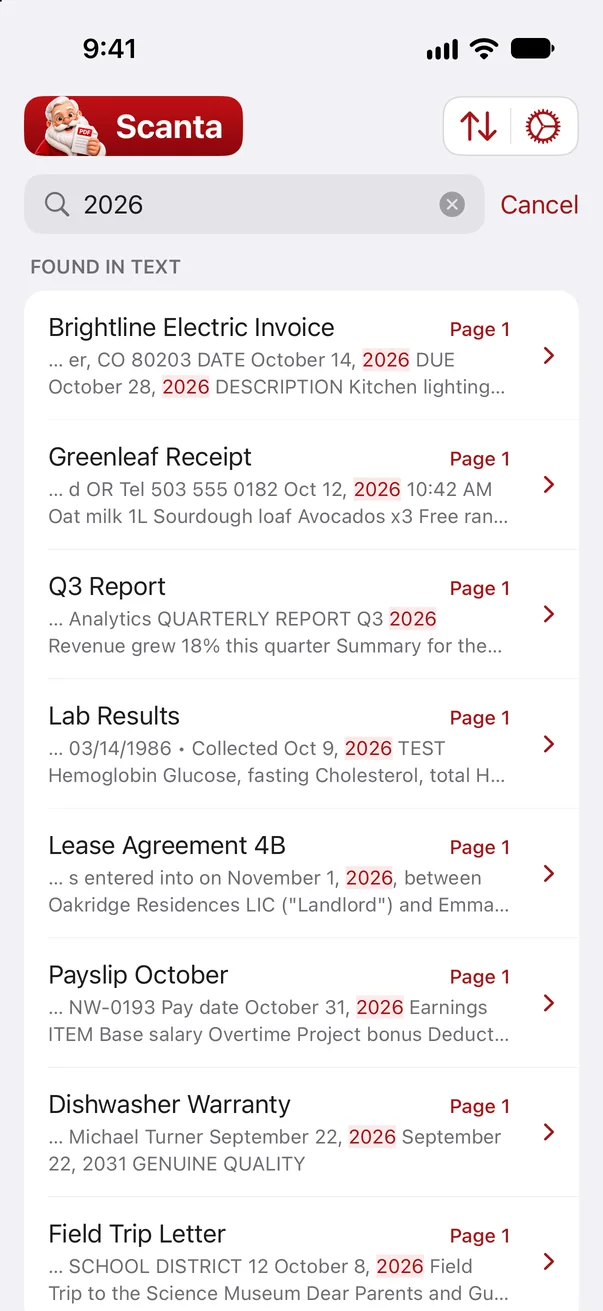
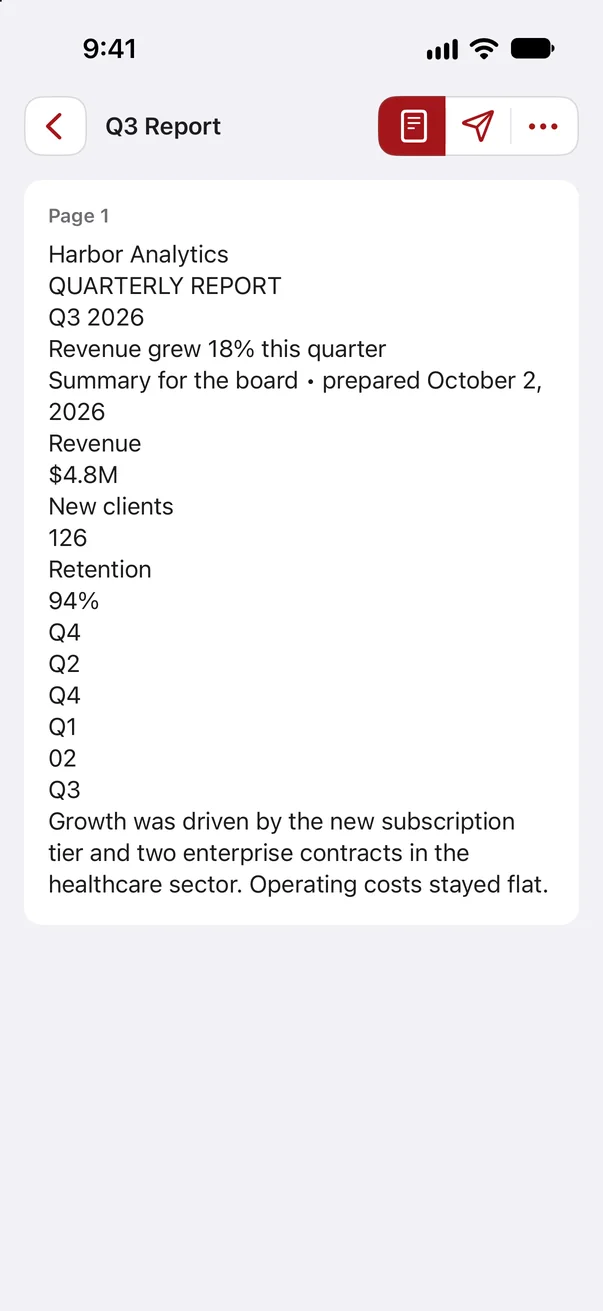
Yes. The recognized text makes every document searchable. No text is sent to any server.
Documents and privacy
Where are my documents stored?
Only on your smartphone, as PDFs in the “Scanta” folder of the Files app. There is no upload, no cloud and no account.
Can I send documents password-protected?
Yes. With “Share protected” the shared copy gets a password you choose yourself. The original in Scanta stays unchanged and without a password.
What data does Scanta collect?
Only an anonymous device identifier and a few usage events, such as a scan being saved. Name and email address (optional) are entered during onboarding. The content of your documents is never transmitted.
What happens if I delete the app?
Deleting the app also deletes the documents from your smartphone. Share or back up important PDFs first, for example in the Files app or by email.
Subscription and pricing
How much does Scanta cost?
Using Scanta requires a weekly or yearly subscription. You can see the current prices in the app or on the App Store.
Is there a free trial?
Yes, with the yearly plan. The first 3 days are free. Cancel before that and nothing is charged.
How do I cancel the subscription?
In the settings of your smartphone. There you can cancel Scanta at any time. The app stays usable until the end of the paid period.
New smartphone, how do I get my subscription back?
Install Scanta and tap “Restore purchases” on the subscription screen. Your documents need to be transferred by you beforehand, for example via the Files app.